Creating VM in a VMware vCenter Cluster
This section describes how to create the VM and and how to install the SUSE Linux (Guest OS) on a single VMware ESXi host through the VMware vCenter Cluster.
Such an environment contains multiple hosts, centralized storage, and distributed network and supports the VMware vCenter features such as vMotion, High Availability (HA), and Fault Tolerance (FT).
Login to the VMware vCenter server.
You can use either vSphere client or vSphere Web client.
- On vSphere client, right click on the proper cluster and select New Virtual Machine….Figure 1. New VM Creation
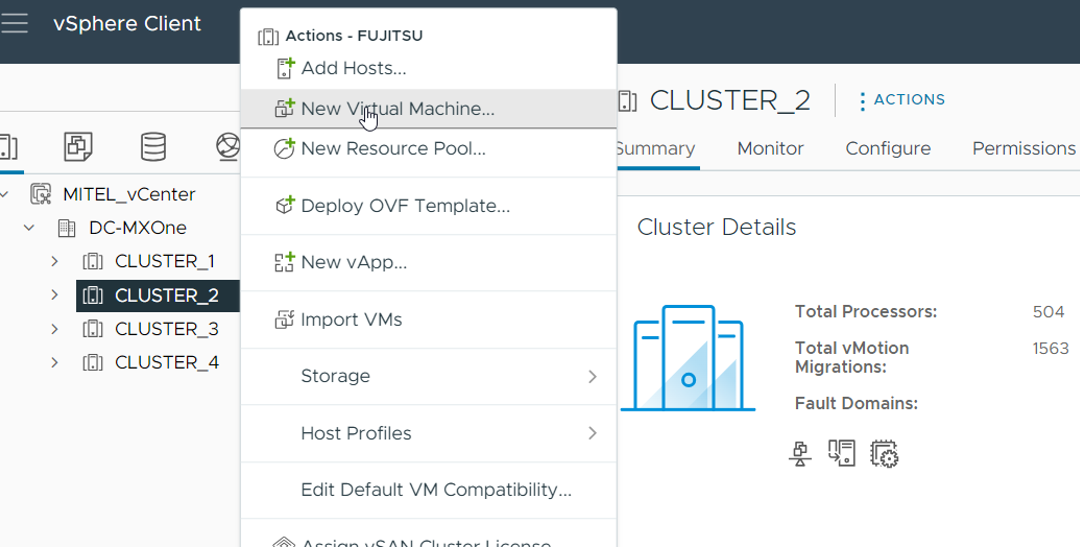 A wizard appears requesting information about the New Virtual Machine.
Select a creation type: Select Create a new virtual machine and click Next.
Select a name and folder: Enter the virtual machine name and select the desired data-center.
Select a computer resource: Select a host or cluster that should handle the new virtual machine.
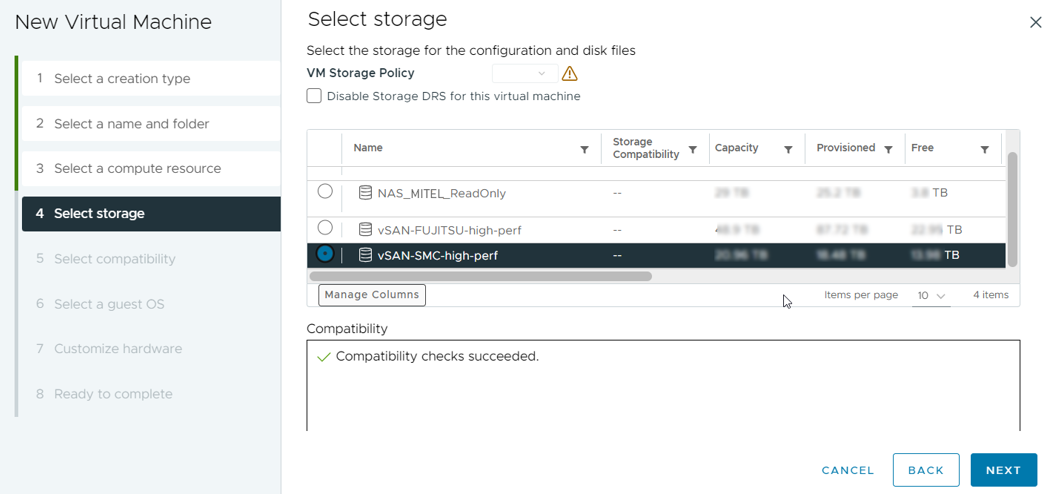
Select storage: Select a storage for the virtual machine.
Note: Choose a centralized storage solution (such as a SAN) if high availability (HA) or fault tolerance (FT) will be required.
Select compatibility: Select the latest ESXi compatibility option for this VM.
- Select a guest OS:
As a Guest OS family, select Linux.
As a Guest OS version, select SUSE 15 (64-bit).
Customize hardware: Select the number of CPU cores, memory size, disk size, and also the right network settings (VLAN and Adapter type). For more information on hardware customization, refer to the 71/1551-ANF90143_MiVoice MX-ONE Engineering Guidelines and 74/1551-ANF90143_MiVoice MX-ONE Virtualization and Public Cloud, Description.
- Ready to complete: Review the overview page and click Finish to complete the process.Figure 2. VM Configuration
Right-click on the newly created VM and select Edit Settings….
A new window appears.
On VM Options tab, navigate to the VMware Tools.
- From Time section, deselect (if already selected) the Synchronize guest time with host.Figure 3. VM Options
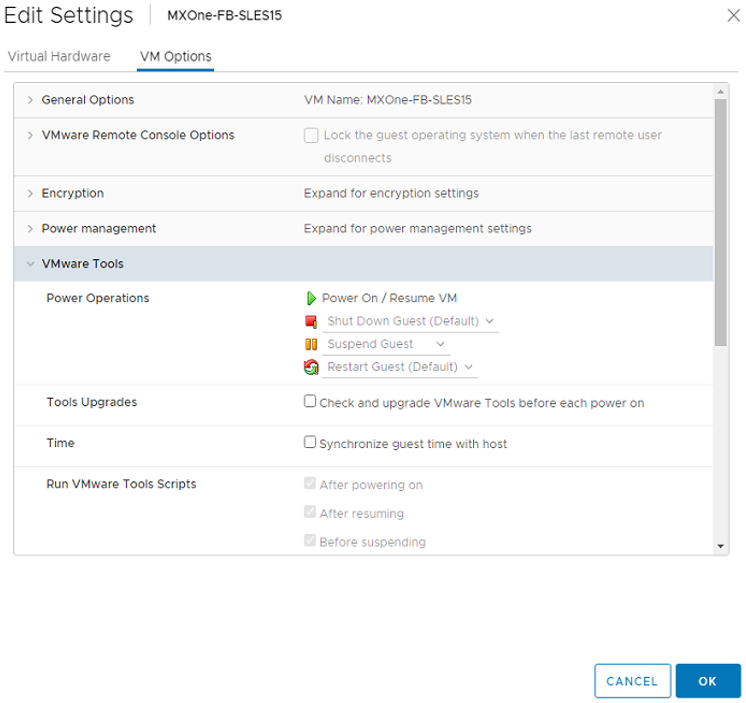 Important: Do not power on the machine after you finish VM creation.
Launch the Remote Console and select VMRC > Manage > Virtual Machine Settings….
- On CD/DVD drive 1, select Use ISO image file and enter the path to the dedicated .iso file.Figure 4. Uploading ISO Image
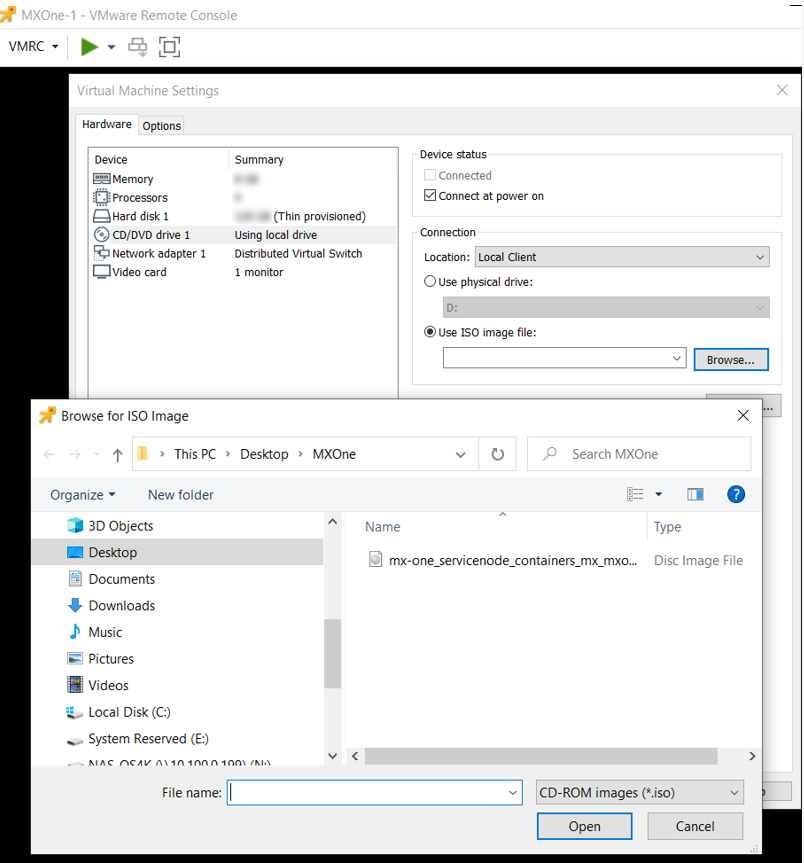
- Select Use ISO image file and enter the path to the dedicated .iso file.Note: To deploy multiple MX-ONE Service Nodes, repeat the above procedure for each VM. Assign unique names to each VM and distribute them across the cluster hosts, considering the cluster configuration, server count, and host load.