Lync Configuration with Security and Media Bypass Setup
You must do the following to finalize the configuration between Mitel MX-ONE and Skype for Business Server 2019 the following needs to be done:
Define PSTN Gateway in the Skype for Business Server 2019 Topology Builder
- Open the Skype for Business Server 2019, Topology Builder, and define a PSTN gateway be used between Lync and MX-ONE.
- To define the PSTN gateway, expand Shared Components and right-click the PSTN gateway.
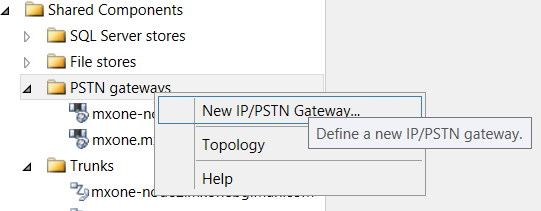
- Click New IP/PSTN
Gateway. The Define the PSTN Gateway FQDN dialog box
appears.
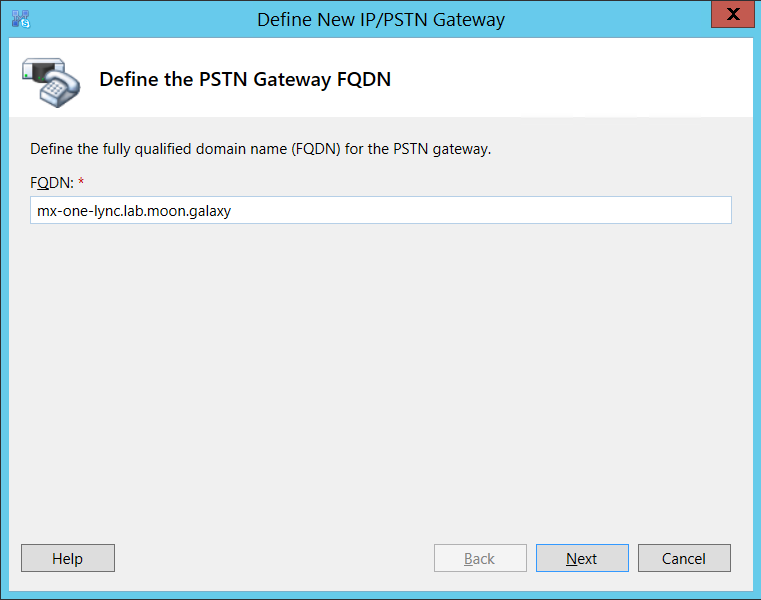
- Enter the FQDN or the IP address: specify the MX-ONE IP Address or FQDN and click Next.
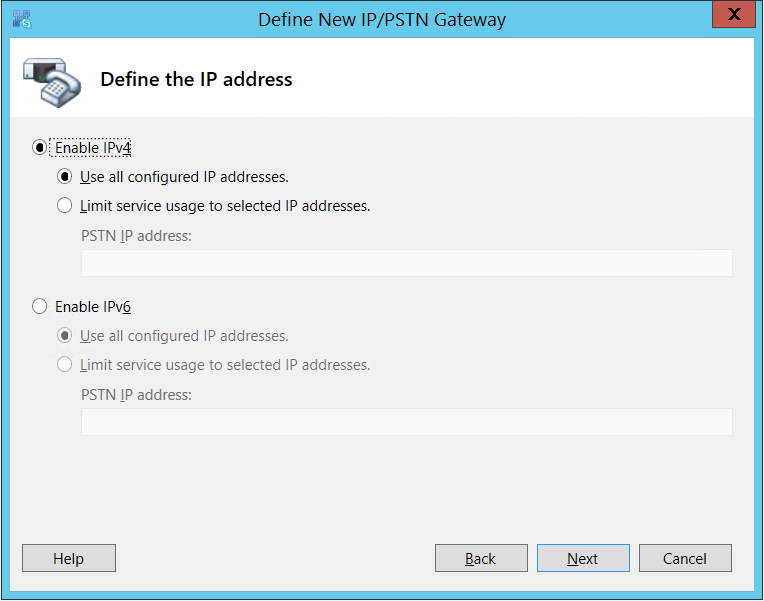
- Define the IP address: in this example, the default is retained.
Click Next.
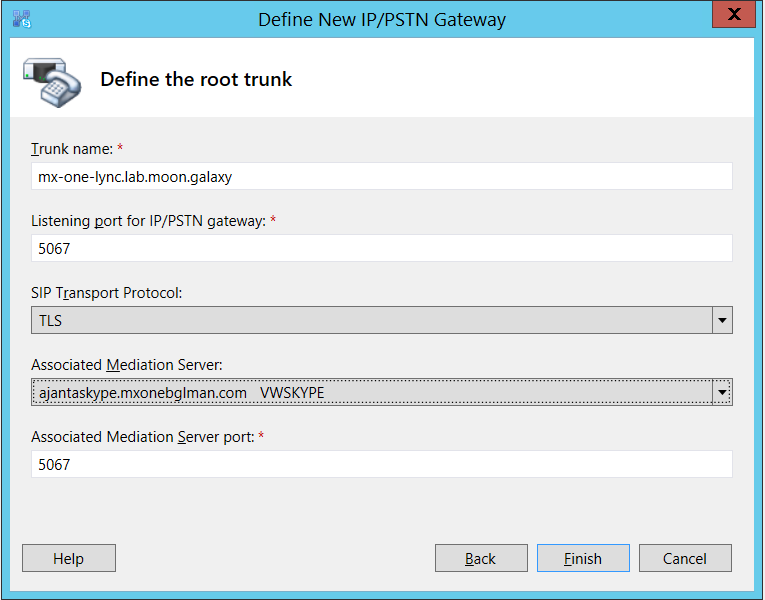
Define the root trunk:
- Trunk name: FQDN (MX-ONE FQDN)
- Listening port for IP/PSTN gateway: 5061 (MX-ONE SIP TCP port)
- SIP Transport Protocol: TCP
- Associated Mediation Server: lync-2019-se.moon.galaxy
- Associated Mediation Server port: 5067 (default)
- Click Next.
- Publish the Topology
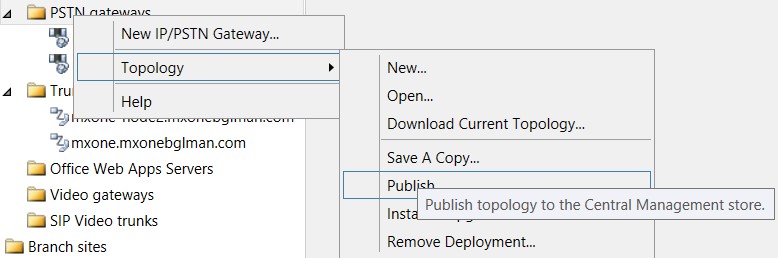
↑