Configuring the PBX System Settings in Mitel Administration
Before creating user in Mitel Administration, you can configure the system settings for the PBX.
The PBX system settings configured in the CloudLink Account are not directly synced to the PBX. The settings have to be entered manually in the PBX.
- Log in to Mitel Administration as an Account Admin.
On the left navigation menu click on the name of the PBX e.g. MiVoice Business and select System Settings.
- This section allows you to define the following:
User extension ranges
Direct inward dialing (DIDs)
SIP Trunk Application Setup
- Note: To configure these settings, please refer to the MiVoice Business integration section on the Mitel Administration User Guide.
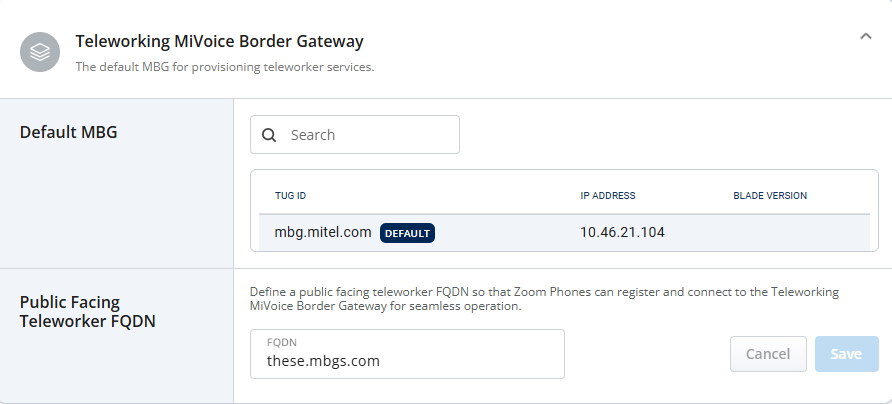
- In the Teleworking MiVoice Border Gateway section,
In the Default MBG field, you can refer to the default configuration of MBG used for provisioning teleworker services.
- In the Public Facing Teleworker FQDN (Fully Qualified Domain Name field, define a public facing teleworker FQDN. This is the public address that Zoom Clients use to connect to your Mitel system. It is crucial for ensuring service continuity, particularly during network disruptions or MBG failover scenarios.Note: If Public Facing Teleworker FQDN is not specified, the Default MBG field value is registered for Zoom phones.Figure 1. Teleworking MiVoice Border Gateway
- In the Emergency Number area, you can configure the fallback emergency numbers.
- To add an emergency number:
Click Dialables.
Start typing a number for emergency calls, e.g: 911, 112.
Press enter, space or add a ,(comma) to add the number.
To edit an emergency number, double click on the number and edit it.
- To delete an emergency number, click X next to the number.Note: You can configure multiple emergency numbers.
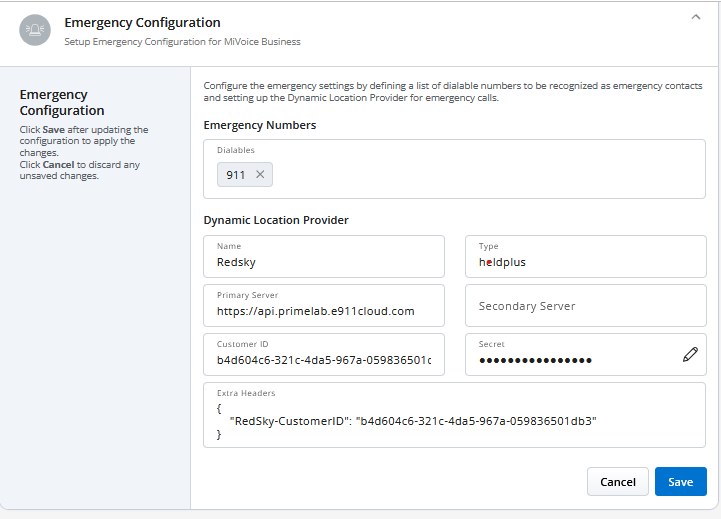
In the Dynamic Location provider area configure a dynamic location provider for the emergency calls.
- Enter the following information:
- Name
- Type
- Primary Server
- Secondary Server
- Customer ID: the unique identifier assigned to your organization by the service provider.
- Secret: the private key or token issued by the service provider to secure communication between Zoom client and the service. This acts as a password and should be treated with high confidentiality.
- Extra Headers: additional HTTP headers
required by the service provider for platform communication. These
headers might include custom authentication schemes, API version, or
specific configuration options required by the provider. Input must
be added in JSON format.Note:
In some cases, you can retrieve emergency configuration information from your account with your emergency provider.
However, it is highly recommended to always verify the settings with your emergency provider.
- Click Save.
 Note: All mandatory fields must be completed before clicking save.
If the Zoom client has an emergency configuration enabled, the user will receive the message Emergency location detected upon login.
You can check and troubleshoot the settings in the Event History page.