Management Profiles
A Management Profiles is a role-based access control feature that enables customer administrators to delegate user management tasks to peer administrators. Each profile defines a specific scope of access and can be assigned to one or more administrators. This ensures that delegated administrators can only view and manage users within their assigned scope.
Navigating to Management Profiles
- Log in to the Mitel Administration Portal as a Customer Administrator.
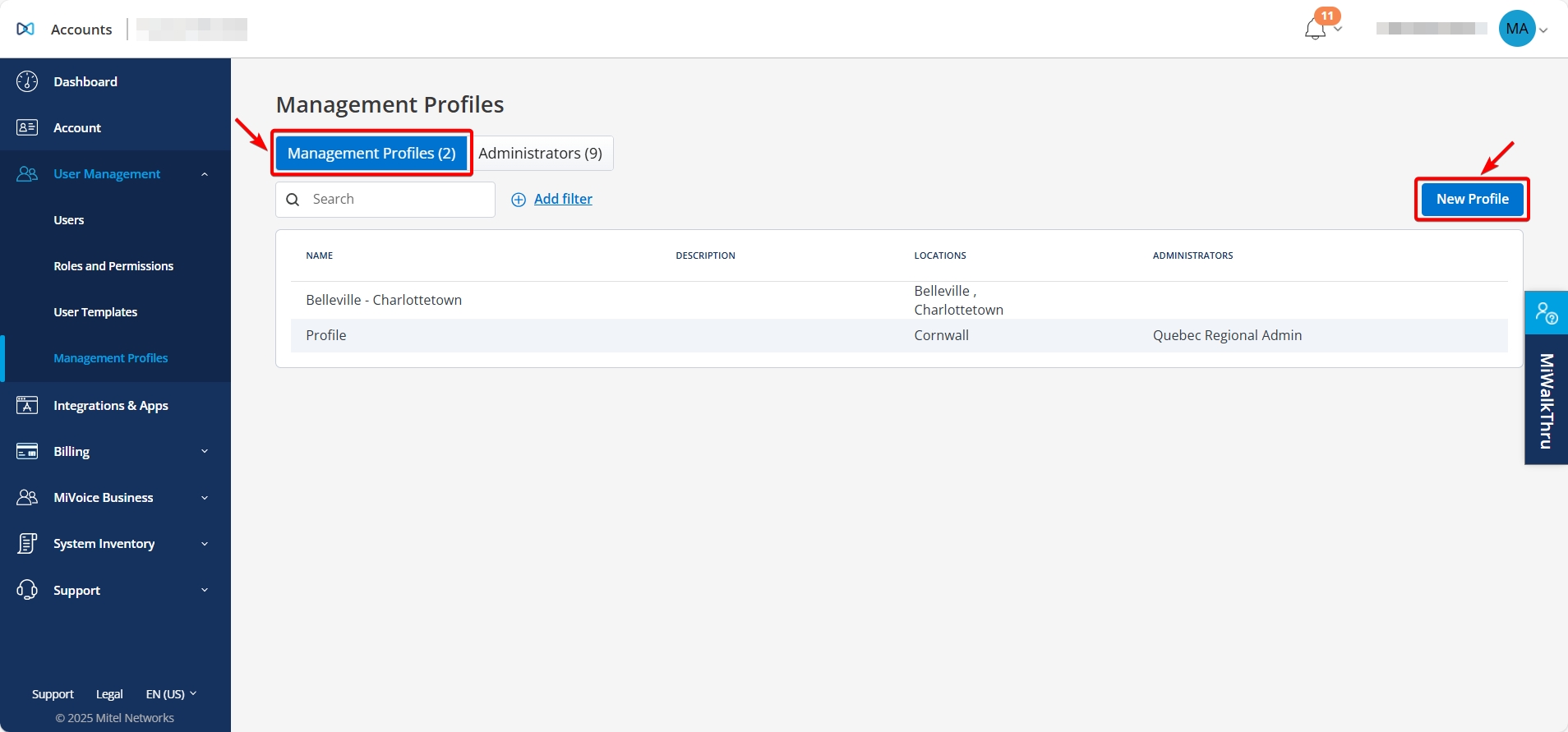
- Go to User Management > Management Profiles.

Create a Management Profile
- On the Management Profiles page, select New Profile.
- Enter a Name and Description for the profile.

- Select the location from the list.Note: You must select at least one location to continue.
- Assign a default or custom permissions.
- Select Save.
The management profile is created and added to the list.

Edit a Management Profile
- On the Management Profiles page, select the profile you want to edit.
- Update the Name, Description, Locations or Permissions as needed.
- Select Save.
The changes are saved and applied to the selected profile.
Note: Changes to a management profile, such as updates to assigned locations, take effect for delegated administrators after they sign out and sign back in. Until then, they might still see and manage previously assigned locations.
Delete a Management Profile
- On the Management Profiles page, select the profile you want to delete.
- Scroll down and select Delete. The Delete Management Profile dialog box opens.
- In the text box, type delete, and then select Delete.
The selected profile is deleted and removed from the list.
Assign a Management Profile to an Administrator
- Go to User Management > Management Profiles.

- Select Administrators tab. The list displays the available administrators.
- Select the administrator(s) you want to assign the profile to.
- In the Management Profile field, choose the appropriate profile.
- Click Save Changes.
The selected profile is assigned to the administrator(s).
Note: If a management profile is updated after it’s assigned—such as changes to locations—the delegated administrator must sign out and sign back in to see the changes.
↑